
Free Image Generator For Blog
The AI Blog Image Generator creates featured images, section graphics, thumbnails, and illustrations tailored to your article topic or headline. Maintain consistent visual styles across blog content while improving readability, social sharing, and on-page engagement.
Images For Blogs
Your Blog AI images (plus alt text, filenames, and captions) will appear here...
How the AI Blog Image Generator Works
Get results in seconds with a simple workflow.
Enter Your Blog Topic or Title
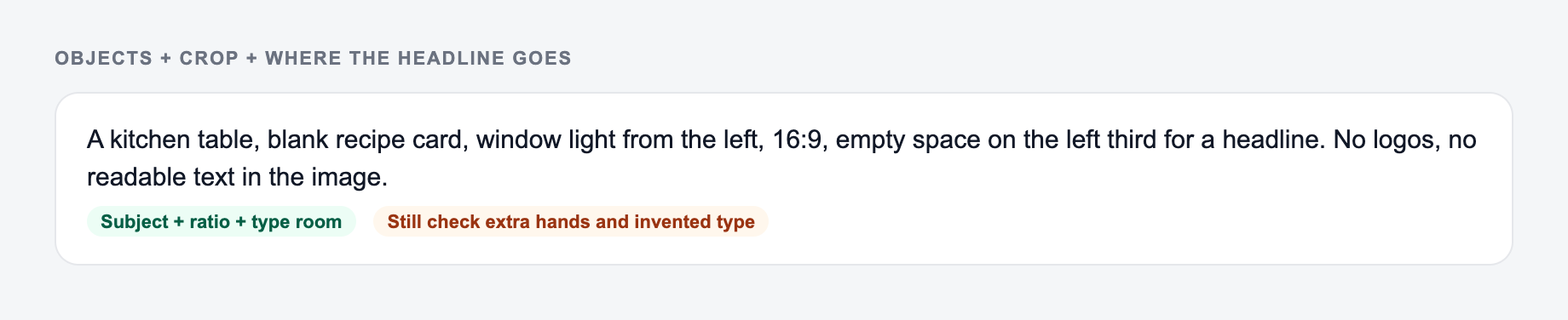
Start with a topic or blog post title. Optionally add a detailed image description (subject, setting, objects, mood) to guide the visuals.
Choose Image Type, Style, and Aspect Ratio
Select featured image vs. section visual, choose a style (photorealistic, flat, minimal, 3D), and pick an aspect ratio that matches your blog layout and social sharing needs.
Generate Blog Image
Get ready-to-use images for articles plus suggested alt text, filenames, and captions. Use them in your preferred image generation/design workflow and publish with consistent, SEO-friendly metadata.
See It in Action
Turn a generic blog image request into specific, blog-optimized prompts with SEO metadata (alt text, filename, caption).
I need an image for my blog post about keyword research.
Image Prompt (Featured, 16:9, Minimal, Blue/White): Modern flat-lay desk scene with a laptop displaying an SEO keyword dashboard, a magnifying glass hovering over a clean keyword list, subtle graph lines in the background, soft natural daylight, high clarity, minimal clutter, ample negative space on the right for optional headline overlay, professional editorial look. Avoid: watermarks, logos, unreadable tiny text, distorted hands, messy desk.
Alt text: "Minimal featured image showing a laptop with a keyword research dashboard and a magnifying glass highlighting keywords." Suggested filename: keyword-research-featured-image.jpg Caption: "Keyword research starts with finding terms your audience actually searches for."
Why Use Our AI Blog Image Generator?
Powered by the latest AI to deliver fast, accurate results.
Blog-Optimized Featured Image Prompts
Create strong featured image prompts designed for blog headers and hero sections, with clean composition and negative space for headline overlays—ideal for content marketing and SEO blog design.
In-Article Visuals for Better Readability
Generate supporting image prompts for sections and key points to break up text, improve scannability, and increase time on page—helpful for user experience and on-page SEO.
SEO-Friendly Alt Text, Captions, and Filenames
Get keyword-aware (non-spammy) alt text, descriptive filenames, and concise captions to strengthen image SEO, accessibility, and relevance for search engines.
Multiple Styles and Aspect Ratios
Choose photorealistic, flat illustration, 3D, isometric, or minimal styles and common blog aspect ratios (16:9, 1:1, 4:5) to match your site layout and brand.
Clear Negative Prompts to Reduce Artifacts
Includes practical “avoid” guidance (e.g., distorted hands, clutter, watermark/text artifacts) so your generated images look clean and professional.
Pro Tips for Better Results
Get the most out of the AI Blog Image Generator with these expert tips.
Use negative space for better blog design
Featured images perform better when there’s a clear focal point and clean space for optional overlays. Ask for minimal clutter and a simple background.
Match visuals to search intent
Informational posts work well with educational visuals (concepts, diagrams, tools). Commercial intent posts benefit from comparison-style visuals, product contexts, or outcome-focused imagery.
Optimize filenames and alt text for image SEO
Use descriptive filenames (e.g., keyword-research-checklist-featured.jpg) and alt text that describes the image naturally. Avoid stuffing keywords—prioritize clarity and accessibility.
Create an image set for long-form SEO posts
For 1,500–2,500 word articles, add a featured image plus 3–6 inline visuals. This improves scannability and can increase engagement on complex topics.
Keep a consistent palette across a topic cluster
If you’re building a content hub, reuse the same palette and style cues across related articles to strengthen brand recognition and visual cohesion.
Who Is This For?
Trusted by millions of students, writers, and professionals worldwide.
How to Generate Blog Images That Actually Look Good (and Help SEO)
Most people don’t struggle with making an image.
They struggle with making an image that fits the post, matches the vibe, doesn’t look like generic AI stock, and still loads fast, reads well on mobile, and gives Google the right context.
That’s the whole point of a blog focused image workflow. Not just “pretty”, but useful.
With this AI Blog Image Generator, you’re basically doing two things at once:
- Creating a clean, specific prompt an image model can understand.
- Shipping the image with the SEO details that people skip. Alt text, filenames, captions.
And yeah, those details add up.
What “Blog-Ready” Images Really Mean
A blog image is doing a job. Different job depending on where it appears.
Featured images (hero images)
The best featured images tend to have:
- One clear focal point
- Minimal clutter
- A background that doesn’t fight your headline
- Enough negative space so you can add text later in Canva, Figma, whatever you use
If you bake text into the image too early, it usually becomes a blurry mess on mobile. Or the model invents letters. Or both.
Section and inline illustrations
Inline visuals are about flow. Breaking up text. Helping someone “get it” faster.
Good inline prompts are usually more literal and more specific than hero prompts. Less mood, more meaning.
Thumbnails and social share images
Small sizes punish detail. If your concept only works when it’s large, it won’t click.
For social, bold composition and high contrast usually wins. Also leaving space for a short overlay if you want one.
Simple diagrams and concept visuals
For how to posts, checklists, frameworks, “process” content. A diagram style visual can increase time on page because it gives the reader a quick mental map.
Keep it minimal. Avoid tiny text. Use clear shapes, simple steps, strong hierarchy.
Image SEO Basics (Without the Keyword Stuffing)
Image SEO is mostly boring. Which is why it works when you actually do it.
Here’s the stuff that matters.
1) Alt text
Alt text is primarily for accessibility. Search engines also use it to understand what the image is.
A good rule: describe what’s in the image as if you’re explaining it to someone who can’t see it.
Bad alt text:
- “keyword research seo tool best keyword research”
Good alt text:
- “Laptop showing a keyword research dashboard with a magnifying glass highlighting a list of keywords.”
2) Filenames
Use real words. Separate with hyphens. Keep it readable.
Examples:
keyword-research-featured-image.jpgcontent-audit-checklist-inline-illustration.pngsaas-onboarding-flow-diagram.jpg
3) Captions
Not every image needs a caption. But when you add one, it should add context, not repeat the alt text.
A caption can also pull the reader’s eyes back into the article. Tiny UX win.
A Simple Workflow That Keeps Your Images Consistent
If you publish often, consistency matters more than the perfect one off image.
Try this:
- Pick one style for the whole site section (Minimal, Flat Illustration, Photorealistic, etc.)
- Pick 1 to 2 palette directions (example: blue and white, warm neutrals)
- Reuse composition cues in prompts (flat lay, centered object, soft daylight, clean background)
- For each long post: 1 featured image + 3 to 6 inline visuals
That’s it. It’s not fancy, but it makes your blog feel intentional.
If you’re building a whole cluster of posts, generate a cohesive set first, then reuse the same wording patterns for every new article. You’ll feel the difference.
Prompt Patterns That Get Better Results
Answer these before you generate a second batch. A reroll will not fix a vague brief.
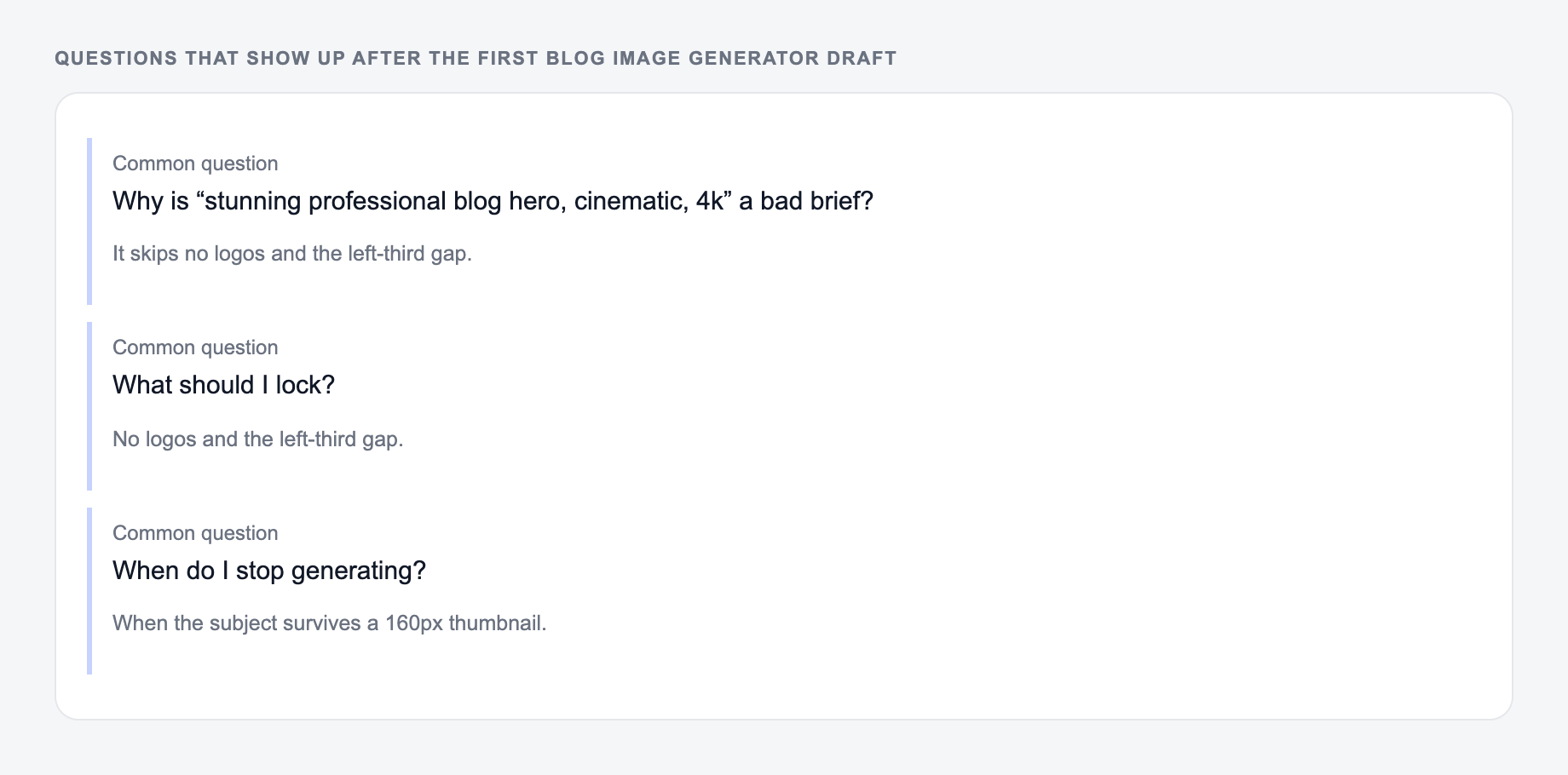
If your images come out weird, it’s usually because the prompt is vague.
Try including these elements, in roughly this order:
- Subject (what is it?)
- Setting (where is it?)
- Composition (flat lay, close up, centered, negative space)
- Lighting (soft natural light, studio light, moody shadows)
- Style (minimal, watercolor, 3D render, etc.)
- Color palette (optional)
- What to avoid (watermarks, unreadable text, clutter, distorted hands)
And if you want to go one step further, keep a small prompt template you reuse. It’s boring, but it keeps outputs stable.
Where Junia Fits In (If You’re Publishing a Lot)
If you’re already writing SEO content, these images are basically part of the same system. Topic, intent, structure, visuals, metadata.
So pairing an image prompt workflow with an SEO writing workflow just makes sense.
If you’re building out content at scale, you can use an AI writing workspace like Junia AI to plan the post, draft it, and then generate image prompts that match the sections you’re publishing. Less switching around. Less inconsistency.
Quick Checklist Before You Publish
Use this right before you hit publish:
- Does the featured image have clean space for a headline overlay?
- Do inline visuals match the section they sit under, or are they just decorative?
- Is the alt text descriptive and natural?
- Is the filename readable and relevant?
- Are you keeping the same style and palette across related posts?
That checklist alone fixes most “why does my blog look messy?” problems.
Worked Prompt, Review, and Delivery Notes
Prompt that wastes a credit
stunning professional blog hero, cinematic, 4k
Prompt to imitate
Kitchen table, blank recipe card, window light from the left, 16:9, empty left third, no logos.
For an article titled “A 30-Minute Content Audit for Small SaaS Teams,” a useful hero brief is:
The screenshot is that hero brief entered as a prompt, with size and style set before you generate.
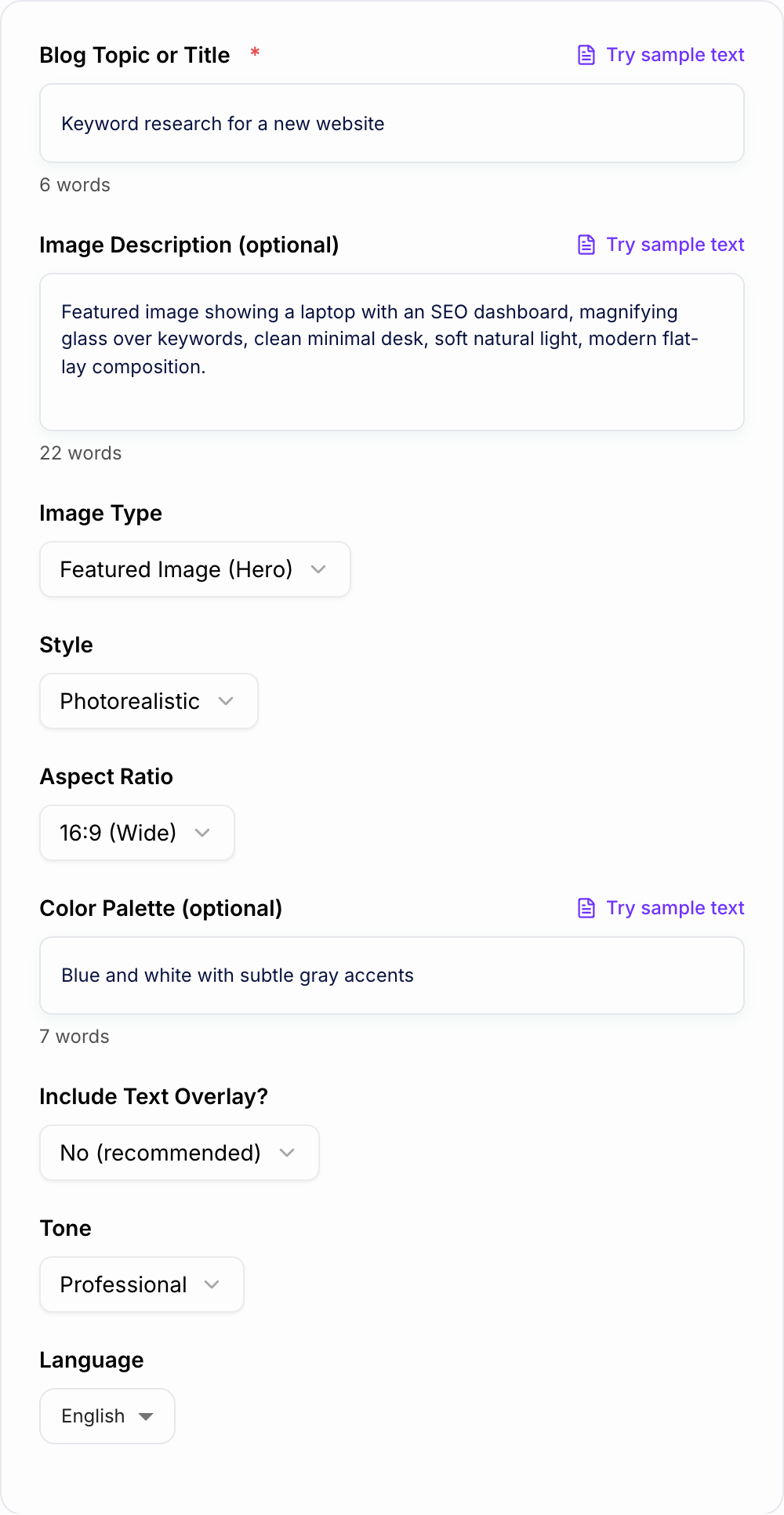
Prompt to imitate: Kitchen table, blank recipe card, window light from the left, 16:9, empty space on the left third for a headline. No logos.
Prompt that wastes a credit: stunning professional blog hero, cinematic, 4k
Editorial flat-lay illustration of a laptop beside three clearly separated audit cards, one magnifying glass, navy and warm coral palette, soft shadows, uncluttered background, wide 16:9 composition, focal objects in the right two-thirds, empty space on the left for a headline, no words, logos, watermarks, or tiny UI labels.
Do not judge only at full size. Review the result as a 320-pixel thumbnail and a mobile crop. Check whether the focal point survives, whether objects or hands are malformed, whether incidental text is unreadable, and whether the style matches existing article art. Models may ignore negative instructions or generate plausible-looking but false interfaces; diagrams with exact labels usually need manual design after generation.
A publish-ready handoff might use content-audit-workflow-hero.webp, alt text such as “Illustration of a laptop and three cards representing a SaaS content audit,” and a caption only if it adds information. Do not repeat the headline in alt text. Decorative images may need empty alt text under the site’s accessibility policy. Export dimensions, compression, responsive variants, and licensing or model-use terms still require human review.
Frequently Asked Questions
What does the AI blog image generator create?+
It generates high-quality images for blog-ready visuals—plus SEO-friendly alt text, suggested filenames, and captions tailored to your topic and image type (featured image, inline illustration, thumbnail, or social share).
Can I generate images for any blog niche (SEO, SaaS, health, finance, etc.)?+
Yes. Enter your blog topic or title and optionally add details. The tool adapts the subject matter, composition, and style cues for a wide range of industries and content types.
Does this help with image SEO?+
Yes. It provides descriptive, accessibility-friendly alt text, clean filenames, and relevant captions aligned with the blog topic. These elements help search engines understand your images and can support visibility in image search.
Should I put text inside the image?+
Usually no—text can become unreadable on mobile and may introduce artifacts. A better approach is generating a clean image with negative space, then adding text overlays in your design tool for consistency.
How do I keep a consistent style across multiple blog posts?+
Use the same style choice (e.g., Minimal, Flat Illustration) and provide a consistent color palette. For even stronger consistency, use the Brand-Consistent Set mode and reuse the same style cues across your content cluster.
Will the prompts avoid common AI image issues (weird hands, watermarks, clutter)?+
The prompts include practical negative guidance like avoiding distorted anatomy, unreadable text, watermarks, logos, and overly busy backgrounds. You can also add your own “avoid” notes in the optional description field.