
Free Google Sheets & Excel Formula Generator
Generate Excel and Google Sheets formulas from plain-English instructions. Create XLOOKUPs, SUMIFS, IF formulas, INDEX-MATCH logic, ARRAYFORMULA/spill formulas, date calculations, and text-cleanup functions with optional explanations and locale-aware separators.
Generated Formula
Your Google Sheets / Excel formula will appear here...
How the AI Formula Generator for Sheets & Excel Works
Get results in seconds with a simple workflow.
Describe the result you want
Explain what you want the formula to do (lookup, sum by criteria, clean text, calculate dates). Add optional sheet context like column meanings or ranges.
Choose platform and output preferences
Select Google Sheets or Excel, pick your locale separators (comma/semicolon), and choose whether you want a single-cell formula, copy-down version, or array/spill approach.
Generate and paste into your spreadsheet
Copy the formula into your sheet. If you enabled explanations, review the quick breakdown to confidently adjust ranges, criteria, and references.
See It in Action
Example of turning a plain-English request into a ready-to-paste Google Sheets / Excel formula for conditional aggregation.
I want to sum revenue in column D when status in column B is Paid and the date in column A is in the last 30 days.
Google Sheets / Excel formula: =SUMIFS(D:D, B:B, "Paid", A:A, ">="&TODAY()-30)
Why Use Our AI Formula Generator for Sheets & Excel?
Powered by the latest AI to deliver fast, accurate results.
Instant Google Sheets & Excel Formula Generation
Turn a plain-English request into a ready-to-paste spreadsheet formula for Google Sheets or Microsoft Excel—fast and accurate for common analytics and reporting tasks.
Supports Lookups (XLOOKUP, VLOOKUP, INDEX-MATCH) and Multi-Criteria Searches
Generate lookup formulas that return the right match from large datasets, including multi-criteria lookups, first-match logic, and safe fallbacks with IFERROR/IFNA.
Conditional Aggregation (SUMIFS, COUNTIFS, AVERAGEIFS)
Create formulas for KPI dashboards and reports: sum, count, and average based on multiple conditions like date ranges, status values, categories, regions, and owners.
Text Cleanup and Normalization
Build formulas for data cleaning and prep: TRIM, CLEAN, SUBSTITUTE, REGEXREPLACE (Sheets), proper casing, extracting substrings, splitting, and combining fields for consistent datasets.
Date & Time Calculations for Reporting
Generate date math formulas for rolling windows, month-to-date, week grouping, business days, and aging calculations—useful for finance, ops, and SEO reporting sheets.
Locale-Aware Separators (Comma vs Semicolon)
Choose comma or semicolon argument separators to match your spreadsheet locale settings, reducing formula errors when sharing across regions.
Pro Tips for Better Results
Get the most out of the AI Formula Generator for Sheets & Excel with these expert tips.
Include column meanings for faster, more accurate formulas
Add context like “A=Date, B=Status, C=Email, D=Revenue” to reduce ambiguity and get the correct ranges and return columns in one try.
Use absolute references for fixed inputs
If you’ll copy the formula down, lock stable criteria cells with $ (e.g., $F$2) while leaving row references relative where needed.
Prefer XLOOKUP (or INDEX-MATCH) over VLOOKUP when possible
XLOOKUP is more flexible (left lookups, exact match defaults, safer ranges). If Excel version limitations apply, INDEX-MATCH is a strong alternative.
Wrap lookups with IFNA/IFERROR for clean dashboards
If missing matches are expected, returning blank ("") often looks better than #N/A in reports and client-facing sheets.
Choose array/spill formulas to reduce maintenance
If your dataset grows, ARRAYFORMULA (Sheets) or spill formulas (Excel 365) can automatically fill results without copying formulas down.
Who Is This For?
Trusted by millions of students, writers, and professionals worldwide.
Generate Excel and Google Sheets formulas from plain English
If you have ever stared at a spreadsheet thinking, ok I know what I want, but I have no idea what the formula should look like, this tool is for that moment.
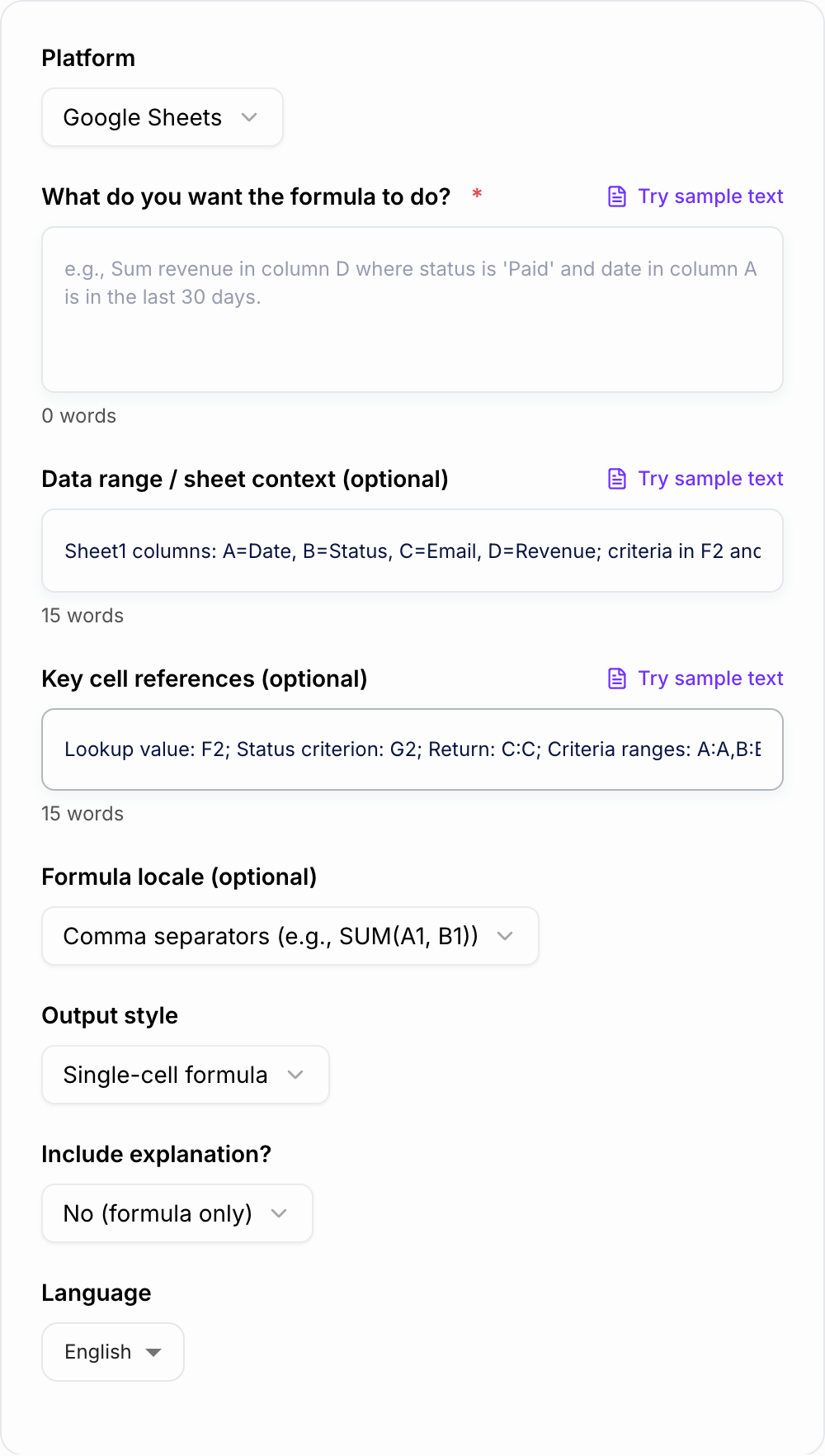
Name the columns you have. The form cannot see a spreadsheet you did not describe.
In: A one-line request like “run the formula generator” with no audience, channel, or constraint.
Out you can keep: A brief the AI Formula Generator for Sheets & Excel can use: who it is for, where the output will appear, and what must stay true.
If the AI Formula Generator for Sheets & Excel invents a column, a timestamp, or a rule you did not state, treat that as a miss.
You describe the outcome in plain English, pick Google Sheets or Microsoft Excel, and get a ready-to-paste formula back. Lookups, multi-criteria sums, text cleanup, date windows, little dashboard helpers. All the stuff you normally end up Googling, then tweaking, then still getting #N/A.
And yes, it handles the annoying details too, like comma vs semicolon separators.
What to enter into the formula generator
The generator works best when your prompt includes the result, the ranges, and the edge case. A strong prompt usually has:
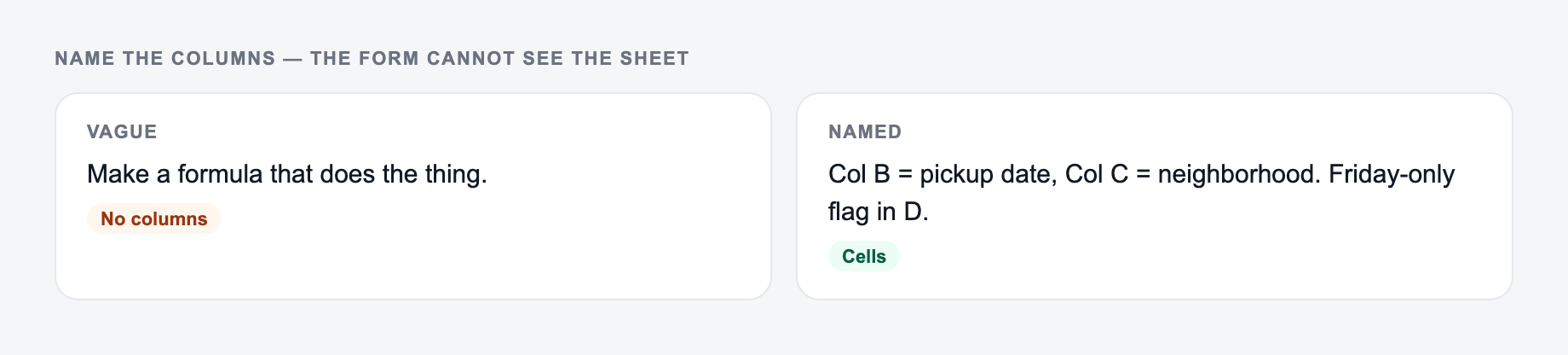
If your input looks like the miss, do not judge the tool yet — add the noun and the constraint first.
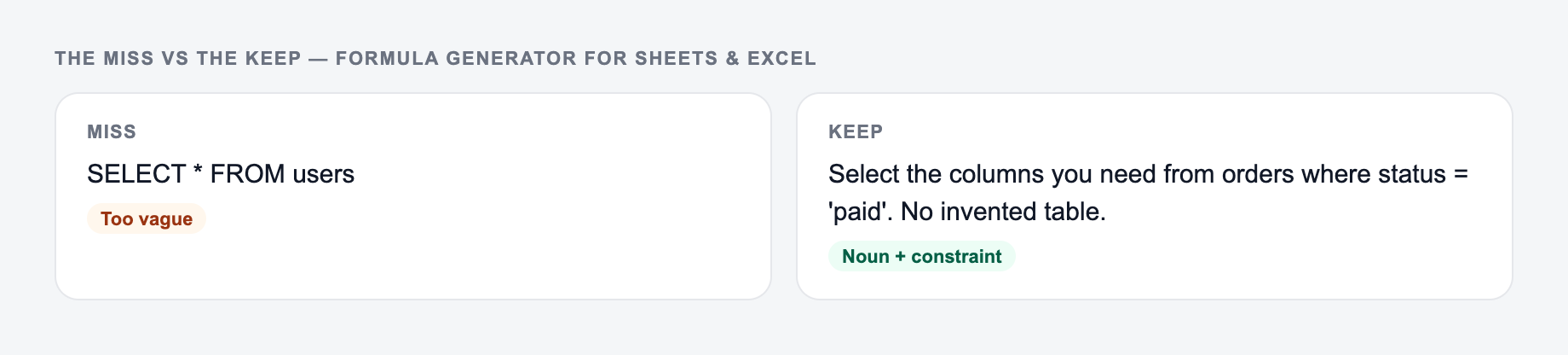
Common misses with the Formula Generator for Sheets & Excel:
-
Describing the file instead of pasting it.
-
Running one setting across mixed formats.
-
Pasting live customer or student data “to see what happens.”
-
The result you want
Example: return the first matching email, sum paid revenue, flag duplicate IDs, or extract the domain from a URL. -
Where the inputs are
Example: lookup value in F2, status in column B, revenue in column D. -
What each column means
Example: A=Date, B=Status, C=Email, D=Revenue. -
What should happen when nothing matches
Example: return blank, return "Not found", or show zero. -
Platform and separator preference
Google Sheets and Excel do not always use the same functions, and some locales need semicolons instead of commas.
You can paste ranges like Sheet1!A:D or just describe the layout. Either works.
What this formula generator is best at
Most spreadsheet work falls into a few buckets. This tool is basically tuned for those.
1) Lookups and matching across columns or sheets
Use it for:
- XLOOKUP or VLOOKUP style lookups
- INDEX MATCH when you need more control
- Multi criteria matching like match where Status is Active and Region is EU
- Return blank instead of errors using IFNA or IFERROR
If you want better results, mention what you are trying to return and where it lives. Example: return Email from column C.
2) Conditional summaries for dashboards
This is where SUMIFS and COUNTIFS live.
- Sum revenue where Status is Paid
- Count leads where Source is Organic and Date is this month
- Average order value for a specific segment
- Rolling windows like last 7, 30, 90 days
If you are building reports, this saves a ridiculous amount of time.
3) Text cleanup and extraction
Common when your data comes from exports, CRMs, ads platforms, or scraped lists.
- TRIM and CLEAN for weird spacing
- SUBSTITUTE for removing characters
- LEFT RIGHT MID for extracting IDs
- REGEXREPLACE in Google Sheets when you need pattern based cleanup
- Combine fields for normalized labels
Tell it what the input looks like and what you want it to become. Even one example value helps.
4) Date logic and time based reporting
This is one of the most error prone areas, especially once you add conditions.
- Month to date, year to date, last 30 days
- Bucket dates into weeks or months
- Aging calculations like days since last touch
- Business day logic (when supported)
If your sheet uses text dates vs real dates, mention that. It changes the approach.
How to choose the right output mode
Use Formula Only when you already understand the logic and just need something clean to paste.
Use Formula + Explanation when you want to learn the formula or adjust it later. The explanation is also useful when you are sharing the sheet with a teammate.
Use Debug / Fix Formula when you already have a broken formula. Include the exact formula, the error message, and what you expected to happen.
Use Array / Spill Version when the formula should fill a whole column automatically. This is especially useful for Google Sheets ARRAYFORMULA workflows and Excel 365 spill ranges.
Google Sheets vs Excel differences to watch for
A few quick realities:
- ARRAYFORMULA is a Google Sheets thing. Excel has spill formulas in 365, similar idea, but not identical.
- REGEX functions are much easier in Sheets. Excel can do some of it, but it depends on your version and functions available.
- XLOOKUP is modern Excel. If someone is on an older version, INDEX MATCH is usually safer.
That is why the platform toggle matters. You want the formula to actually run where you paste it.
Common formula issues this tool helps prevent
Even when you know the function, the mistakes are usually small:
- Wrong range sizes in SUMIFS or COUNTIFS
- Mixed absolute and relative references when copying down
- Using the wrong separator for your locale
- Lookups failing because of spaces or inconsistent data types
- Returning ugly errors in dashboards instead of blanks
If you are trying to learn as you go, turn on the explanation option. It is short, but it usually makes the structure click.
Example prompt and generated result
Try something like this:
Return the value in column C for the first row where column A equals F2 and column B equals "Active". If not found, return blank.
Columns: A=ID, B=Status, C=Email
That is enough context for the tool to generate a clean, pasteable formula such as an INDEX/MATCH, FILTER, or XLOOKUP pattern depending on the selected platform.
After you paste the generated formula, test it on one known row before copying it across the whole sheet. If the formula returns the expected value for a simple case, then test the edge case: no match, blank input, duplicate match, or text-formatted dates.
Final checklist before using the generated formula
- Platform is correct: Google Sheets or Excel.
- Separators match your locale: comma or semicolon.
- Ranges are the same size in
SUMIFS,COUNTIFS, and lookup formulas. - Fixed cells use
$where needed before copying down. - Error handling returns something clean for missing matches.
- Dates are real dates, not text that only looks like a date.
Want more AI tools like this?
This generator is one of many tools we are building. If you like practical, copy-paste outputs that save time, you will probably want to browse the rest of the toolkit on Junia AI.
Frequently Asked Questions
Is this Google Sheets & Excel formula generator free?+
Yes. You can generate spreadsheet formulas for free. Some advanced modes like debugging complex formulas or array/spill-first approaches may be marked as premium.
Does it work for both Google Sheets and Microsoft Excel?+
Yes. Select your platform (Google Sheets or Excel) and the tool will generate a compatible formula. If a function differs between platforms, it will choose the closest equivalent.
Can it generate XLOOKUP, VLOOKUP, and INDEX-MATCH formulas?+
Yes. It can generate lookups including XLOOKUP/VLOOKUP and INDEX-MATCH patterns, plus multi-criteria approaches using FILTER (Sheets), XLOOKUP with helper logic, or combinations like INDEX/MATCH with criteria.
How do I describe my spreadsheet task for the best formula?+
Include what you want to return, where the input/lookup value lives (e.g., F2), which columns contain criteria, and any conditions (dates, statuses, categories). If you know ranges (A:A, Sheet1!A:D), include them.
Why does my formula fail with commas or semicolons?+
Some locales use semicolons instead of commas as function argument separators. Choose the locale option that matches your spreadsheet settings to avoid parse errors.
Will the tool explain the formula?+
Yes. You can choose to receive the formula only (best for copy/paste) or a brief explanation that describes each part—helpful for learning and debugging.
Can it help with spreadsheet errors like #N/A or #VALUE!?+
Yes. Provide your existing formula and what you expected it to do. The tool can suggest fixes like IFERROR/IFNA, corrected ranges, consistent data types, and safer lookup logic.