
Free Case Converter Tool
Paste messy text and convert it into clean, consistent capitalization in seconds. Use the case converter for headlines, page titles, product names, URL slugs, spreadsheet rows, ad copy, social captions, and any text that needs a polished format.
Converted Text
Your converted text will appear here...
How the Case Converter Tool Works
Get results in seconds with a simple workflow.
Paste Your Text
Add a headline, paragraph, list, or any text you want to reformat. This works for blog titles, headings, metadata, and body copy.
Choose a Conversion Type
Select UPPERCASE, lowercase, Title Case, Sentence case, Start Case, Toggle Case, Alternating Case, or an SEO-friendly slug format.
Convert and Copy
Generate the converted output instantly, then copy/paste it into your CMS, document, email, or SEO workflow.
See It in Action
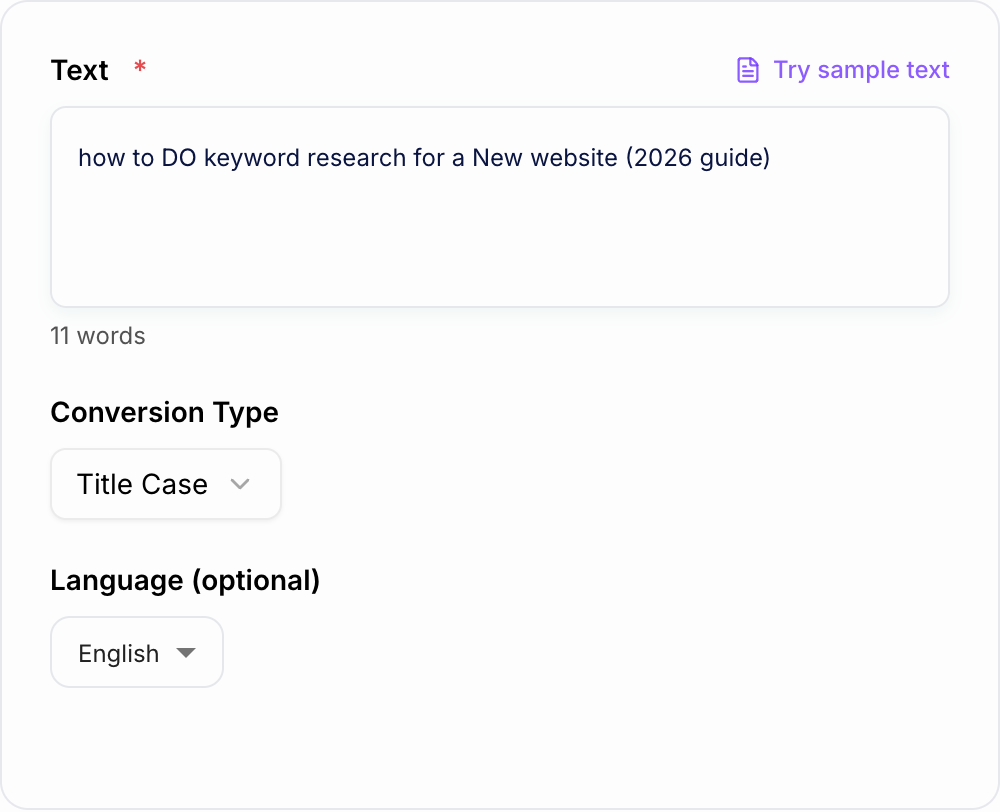
Convert messy capitalization into clean Title Case for blog titles and SEO headings.
how to DO keyword research for a New website (2026 guide)
How to Do Keyword Research for a New Website (2026 Guide)
Why Use Our Case Converter Tool?
Powered by the latest AI to deliver fast, accurate results.
Convert Text to Uppercase, Lowercase, Title Case, and Sentence Case
Instantly change capitalization for blog titles, headings, emails, documents, and metadata. Ideal for fixing inconsistent casing and standardizing content formatting.
SEO-Friendly Title Case for Headlines and H1/H2s
Generate clean Title Case for blog post titles, landing page headings, and YouTube titles—helpful for readability, brand consistency, and on-page SEO presentation.
One-Click Sentence Case for Clean Body Copy
Turn messy capitalization into natural sentence formatting for paragraphs, product descriptions, and FAQs—improving clarity and user experience.
Toggle and Alternating Case for Style Variations
Create quick stylistic variations for social captions, creative copy, and A/B tests—without manually editing character by character.
Optional Slug Generator (kebab-case) for URLs
Convert titles into a URL-friendly slug by lowercasing, removing special characters, and replacing spaces with hyphens—useful for SEO-friendly links and CMS publishing workflows.
Pro Tips for Better Results
Get the most out of the Case Converter Tool with these expert tips.
Use Title Case for blog titles—Sentence case for paragraphs
A consistent style improves readability and makes content look more professional across pages, especially on SEO-driven blogs and landing pages.
Generate slugs from your final title (not your draft)
Create the URL slug after you finalize the headline to avoid mismatches between the title and permalink, and keep URLs short and descriptive.
Keep acronyms consistent (SEO, API, CRM)
If your text contains acronyms, double-check the output and keep them in all caps where appropriate for clarity and brand trust.
Standardize headings for content refresh projects
When updating older SEO content, consistent heading case across a site helps presentation and reduces editorial cleanup time.
Avoid ALL CAPS for long titles
UPPERCASE can reduce readability for long headlines. Use it for short UI labels, banners, or emphasis—not full paragraphs.
Who Is This For?
Trusted by millions of students, writers, and professionals worldwide.
Convert Text Case Faster with a Free Case Converter Tool
Use the Case Converter Tool as a mechanical pass. Paste the real input, set the one constraint that usually breaks the job, then test the ugly case before you trust the happy path.
A case converter is a small utility, but it solves a common publishing problem: text copied from documents, spreadsheets, CMS fields, ads, and emails rarely follows one clean capitalization style. Paste the text into the tool, choose the format you need, and copy the normalized version instead of fixing every word by hand.
That matters when you are cleaning up titles, headings, metadata, product names, campaign labels, or URL slugs. Consistent case makes content easier to scan and keeps a page from feeling stitched together from different sources.
What to Paste Into the Case Converter
Use the tool for any text where capitalization needs to be consistent:
- Blog titles, H1s, H2s, and YouTube titles
- Product names, category labels, and spreadsheet rows
- Email subject lines, ad headlines, and social captions
- Short UI labels, buttons, badges, and navigation text
- Finished titles that need a clean URL slug
For best results, paste the final wording first. The converter can fix case quickly, but it will not decide whether the headline itself is too long, vague, or missing an important keyword.
How to Choose the Right Case Format
Use Title Case for article titles, page titles, and main headlines. It gives important words the visual weight readers expect in a headline.
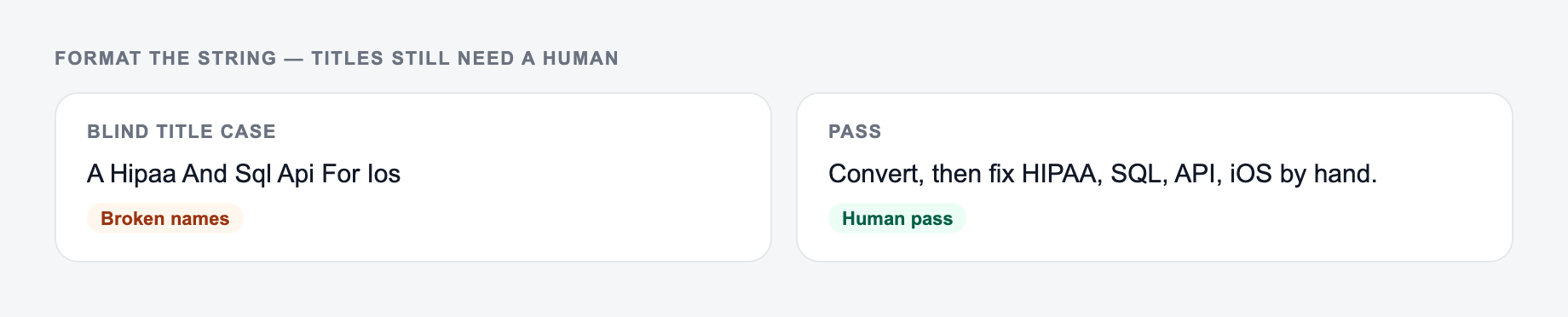
Paste the string and pick the format. Titles and product names still need a human pass.
Edge cases worth trying once on the Case Converter Tool:
- Empty or two-word input — it should ask for a noun, not hallucinate a project.
- Mixed lists — split them; one delimiter per run.
- Protected terms — put them in the keep-list before you generate.
Use Sentence case for paragraphs, support docs, FAQs, product descriptions, and most body copy. It reads more naturally and avoids the heavy look of capitalizing every major word.
Use UPPERCASE for short labels, badges, banners, and strong emphasis. Avoid it for long sentences because it becomes harder to read.
Use lowercase for tags, internal notes, code-like labels, or when you need a uniform baseline before editing.
Use URL slug format when you want a clean kebab-case version of a title, such as best-ai-writing-tools-marketing-teams. After generating the slug, remove filler words if the result is longer than it needs to be.
Review the Converted Text Before Publishing
The most important check is acronyms. Terms like SEO, AI, API, CRM, HTML, and brand names often need to stay uppercase even when the rest of the text changes. If the page title includes a product name or proper noun, scan it before copying the result into your CMS.
Also check punctuation and spacing. A converter can normalize capitalization, but the final title still needs to read cleanly in context. For content teams that format a lot of metadata, headings, and drafts, keeping a consistent workflow inside Junia AI makes these small cleanup steps easier to repeat across pages.
Quick Publishing Checklist
If the output felt generic, it is usually one of these three misses.
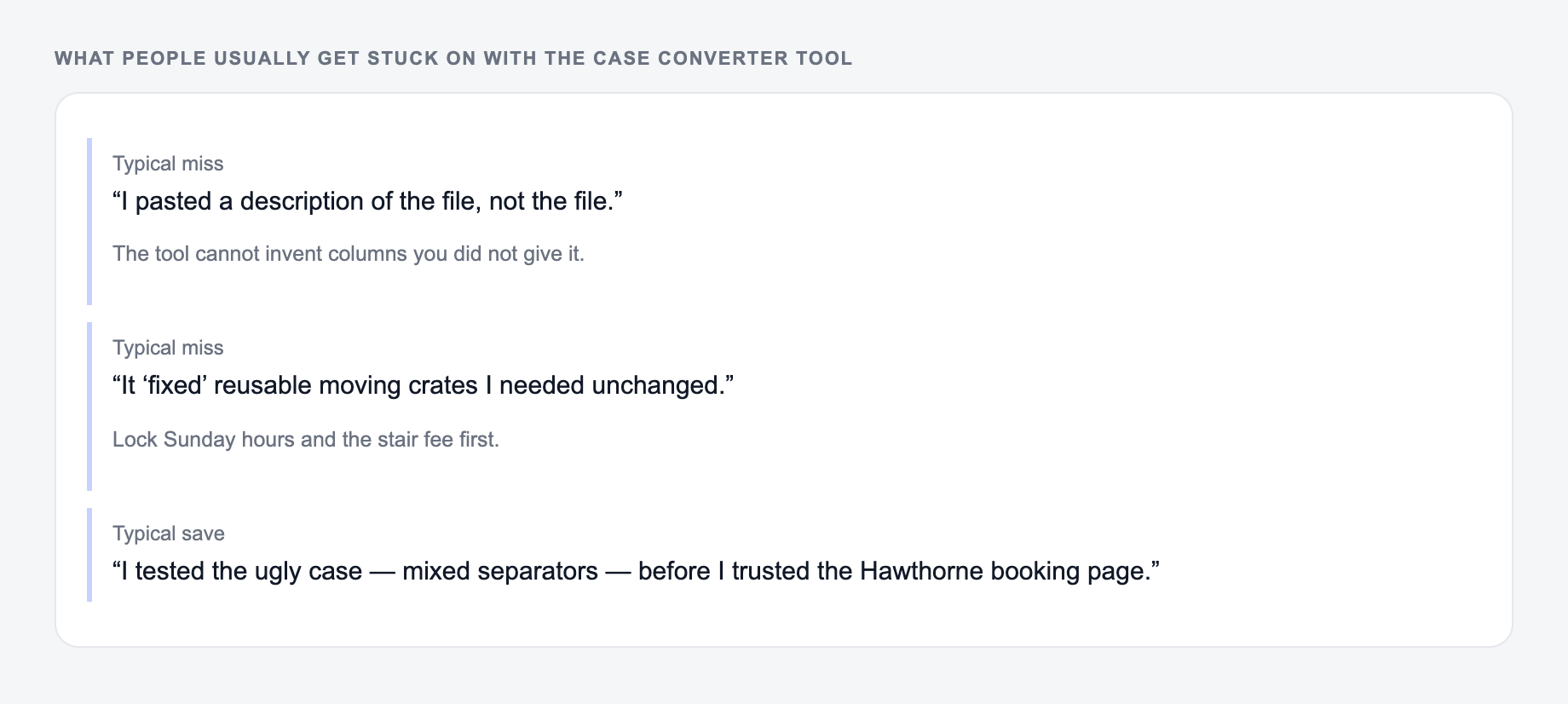
Before using the converted text, confirm that:
- The chosen case matches where the text will appear
- Acronyms and proper nouns still look correct
- The URL slug is short, readable, and not stuffed with filler words
- Long paragraphs are in sentence case, not title case or uppercase
- The final version looks natural in the page, ad, document, or spreadsheet
Frequently Asked Questions
What is a case converter tool?+
A case converter changes the capitalization of text—such as converting to uppercase, lowercase, Title Case, or Sentence case—so you can quickly format headlines, paragraphs, and labels consistently.
Which case is best for SEO titles and headings?+
Title Case is commonly used for blog post titles and page headings because it improves readability. For body content and FAQs, Sentence case usually looks most natural. SEO performance depends more on content quality and intent match than capitalization alone, but consistent formatting helps user experience.
Does converting text case change punctuation or spacing?+
No. The tool is designed to preserve punctuation, numbers, emojis, and whitespace while updating capitalization—so your formatting stays intact.
Can I create an SEO-friendly URL slug from a title?+
Yes. Use the Slug (kebab-case) option to generate a URL-safe slug by lowercasing text, removing unsupported characters, and replacing spaces with hyphens. Always review for clarity and relevance before publishing.
Will this work with different languages and accented characters?+
Yes. Case conversion generally works across many languages. If you’re working with non-English text, select the appropriate language to help ensure casing rules are applied sensibly.
Is this case converter free to use?+
Yes. Core case conversions are free. Some advanced formatting modes (like slug generation) may be marked as premium depending on your site’s configuration.