
Back to Help Centre
Import content into Junia
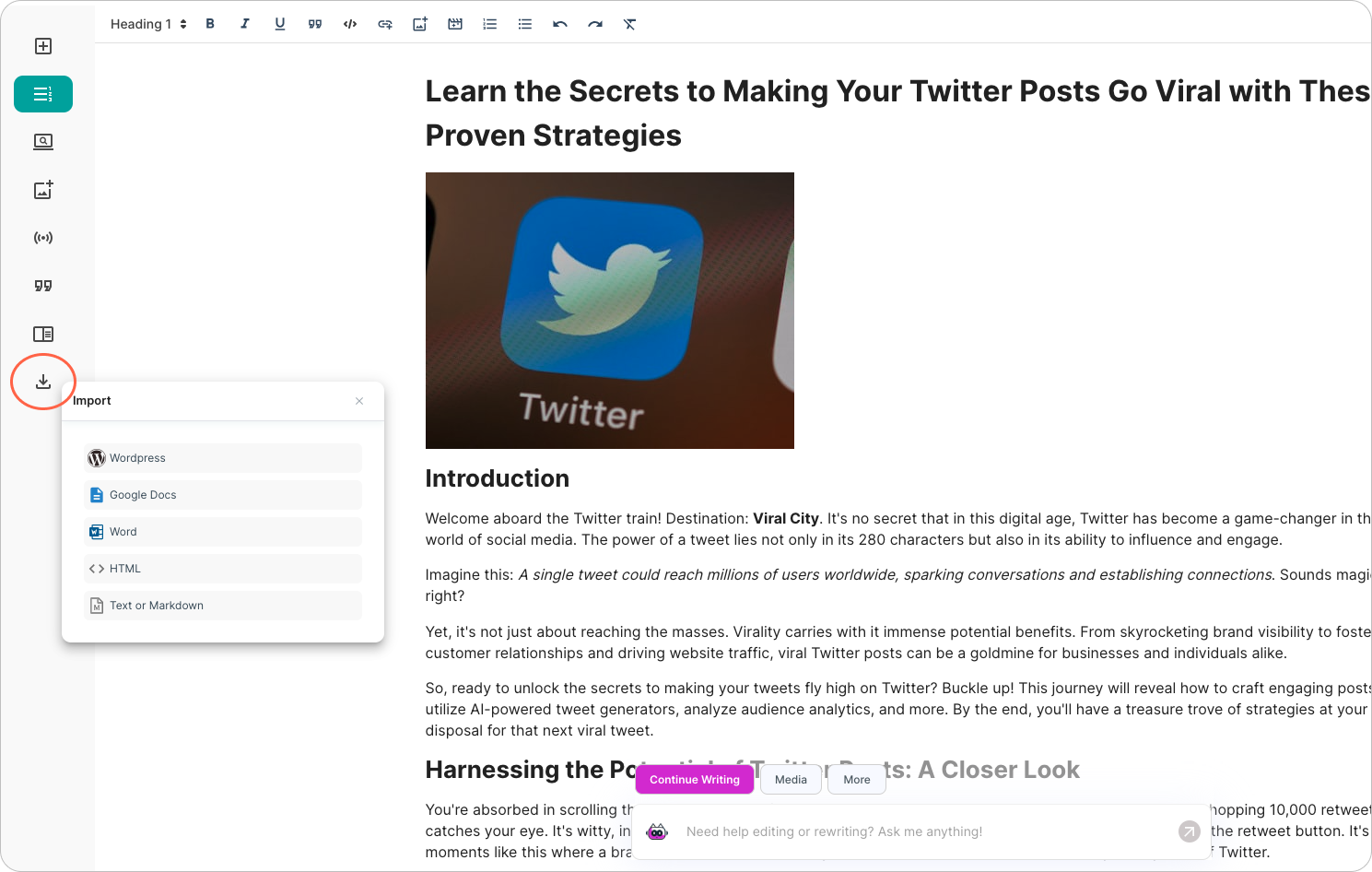
Import an existing page into the editor if you want to improve it, then publish it again or add it to Autoblog later.
Importing HTML
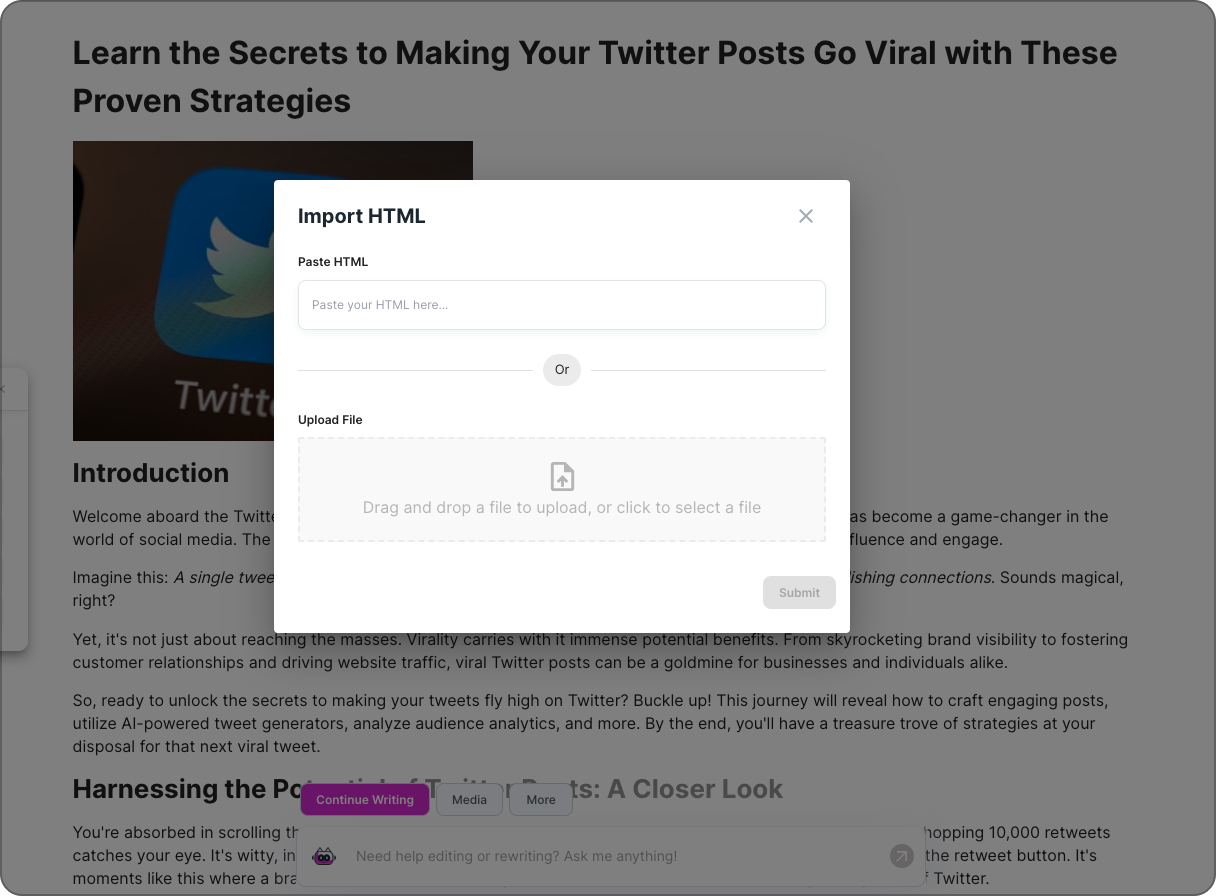
Junia AI offers two ways to import HTML content: either paste the HTML directly or upload an HTML file.
Pasting HTML Directly
- Copy all your HTML (Ctrl+C / Cmd+C).
- In our AI Editor, paste your copied content (Ctrl+V / Cmd+V).
Uploading an HTML File
- In our AI Editor, click on the 'Import' button on the left-hand side and choose 'HTML'.
- Navigate to the location of your HTML file on your computer.
- Select the HTML file and click 'Open'. The content will be automatically imported into Junia AI.
Both methods will import your HTML content into Junia AI, ready for you to use with its advanced AI-powered features.
Importing Markdown
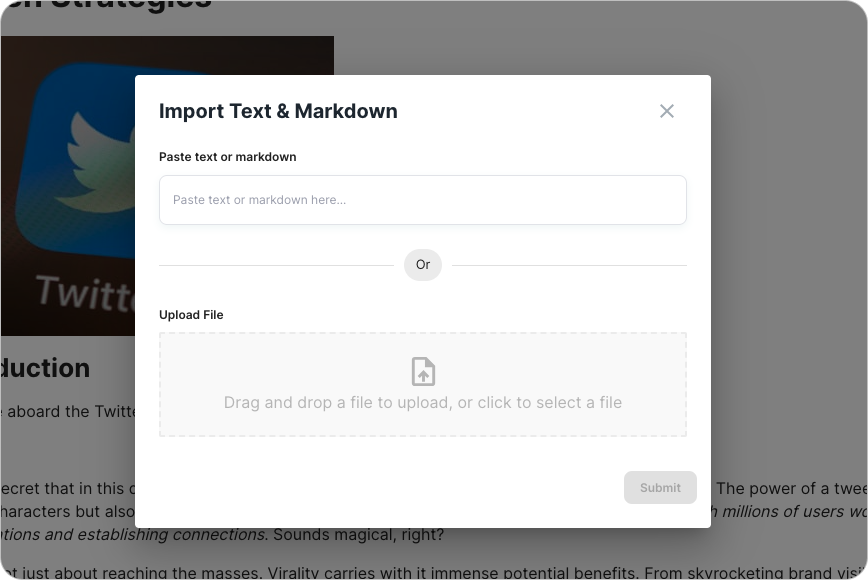
Junia AI provides two convenient ways to import Markdown content: pasting the Markdown directly or uploading a Markdown file.
Pasting Markdown Directly
- Copy all your Markdown text (Ctrl+C / Cmd+C).
- In our AI Editor, paste your copied content (Ctrl+V / Cmd+V).
Uploading a Markdown File
- In our AI Editor, click on the 'Import' button on the left-hand side and choose 'Text & Markdown'.
- Navigate to the location of your Markdown file on your computer.
- Select the Markdown file and click 'Open'. The content will be automatically imported into Junia AI.
Importing from Google Docs
- Open your Google Doc.
- Click on 'File > Download > Microsoft Word (.docx)'.
- In our AI Editor, click on the 'Import' button on the left-hand side and choose 'Upload Docx'.
- Select "Google Docs" option and select your .docx file. The content from the Word document will be imported into Junia AI.
Importing from WordPress
- In our AI Editor, click on the 'Import' button on the left-hand side and choose 'WordPress'.
- If you haven't authorized Junia already, you will be prompted to authorize Junia to access your content in WordPress following this guide.
- Once you have done so, enter the ID or Slug of your Post in WordPress and hit "submit". The content will be automatically imported into Junia AI.
Check formatting after import. Then use AI Co-write to expand or rewrite.
Need help?
Email support@junia.ai.