
How to use Custom Images
Custom Images keeps your AI-generated feature images on-brand. Upload images in the style you want, like past feature images or brand illustrations. When you select one for an article, the AI creates a brand-new image for that article's topic in the same style: the same colors, medium, lighting and mood.
Brand Voice is how you sound. Custom Images is how your images look.
Open Custom Images. It's in the sidebar under Create.
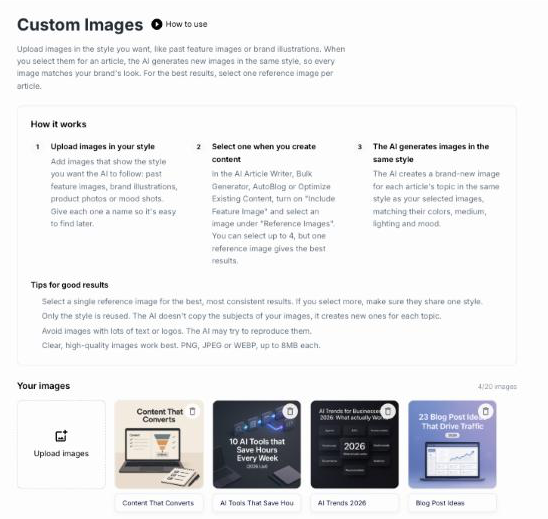
1. Upload images in your style
Click Upload images and pick one or more PNG, JPEG or WEBP files (up to 8MB each). You can keep up to 20 images.
Give each image a name so it's easy to find later. Click the name under an image to rename it.
Good reference images:
- Past feature images from your blog
- Brand illustrations or product photos
- Images that share one consistent style
Avoid images with lots of text or logos. The AI may try to reproduce them.
2. Select one when you create content
Turn on Include Feature Image, then click an image under Reference Images to select it. You can upload a new image right there too.
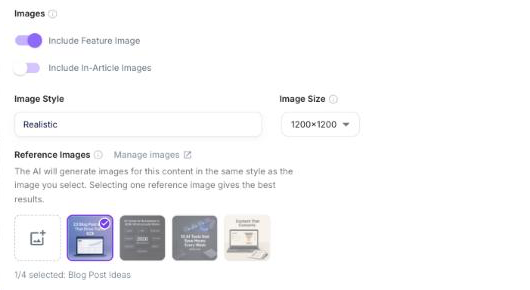
Reference Images is available in:
- Autoblog — in Content Preferences when you create or edit a campaign. See create an Autoblog campaign.
- AI Article Writer — in the advanced settings before you generate.
- Bulk Generator — in the image settings.
- Optimize Existing Content — in the image settings.
Tip: select a single reference image for the best, most consistent results. You can select up to 4, but only do that if they share one style.
3. The AI generates images in the same style
Junia sends your selected image to the AI together with the article. The AI doesn't copy the image's subject. It creates a new image for each article's topic in your style.
Plans
Anyone can upload images. Using them for your articles requires a paid plan.
Need help?
Email support@junia.ai.
Related Articles
Tips on choosing a tone of voice
Pick a voice for Autoblog and every article so your site stays consistent.
How to use Brand Voice
Save your writing style once and apply it in Autoblog and every article.
How to write factual content with Info Base
Give Junia your facts so Autoblog and every article stay accurate.